📋 Task Board
Manage, prioritize, and track bugs, tasks, and feature requests. Choose between List and Table views, apply advanced filters and grouping, and run bulk operations.
🌟 Overview#
The Task Board is the primary workspace in Sniffer where your team manages defects, tasks, and feature requests. Issues come from multiple sources — manual creation, 💬 Feedback widget submissions, 📡 Live error monitoring / 🤖 Sniffer AutoBug , 🔌 Browser Extension captures, and tickets synced from 🔗 Jira . Regardless of origin, every issue lands on the Task Board.
The board is fully synchronized with your connected Jira project. Updating an issue’s status updates the Jira ticket, and status changes made in Jira are reflected on the board in real time via WebSocket.
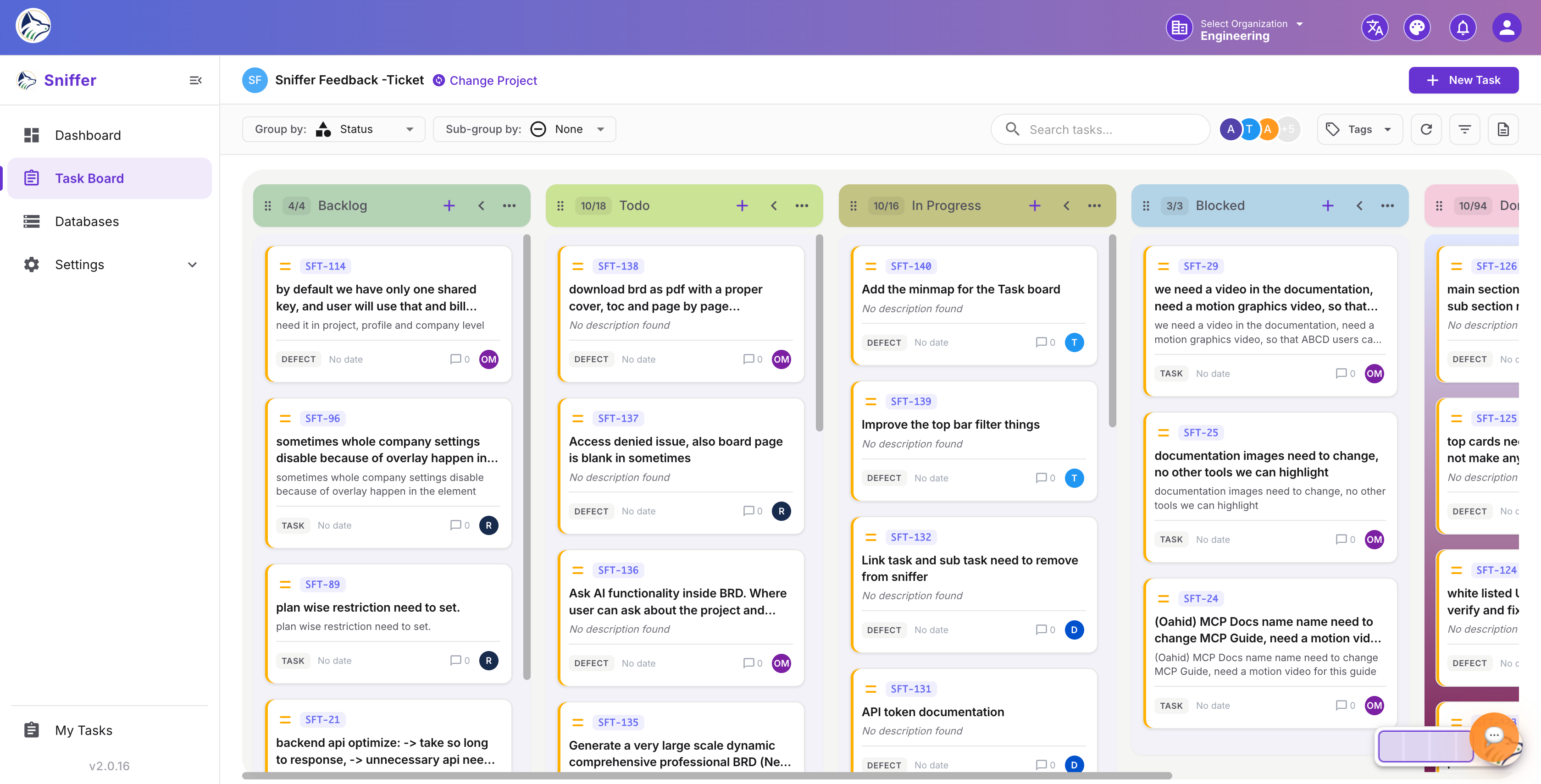
Route: /sf/projects/:id/task-board
🖥️ Board Views#
Switch between two views using the toggle buttons in the toolbar:
📋 Table View#
Spreadsheet-style grid with:
- Sortable, resizable, reorderable columns
- Inline editing of status, priority, assignee, tags, dates
- Multi-column sorting with Shift + click
- Column visibility menu (show/hide columns)
- CSV export
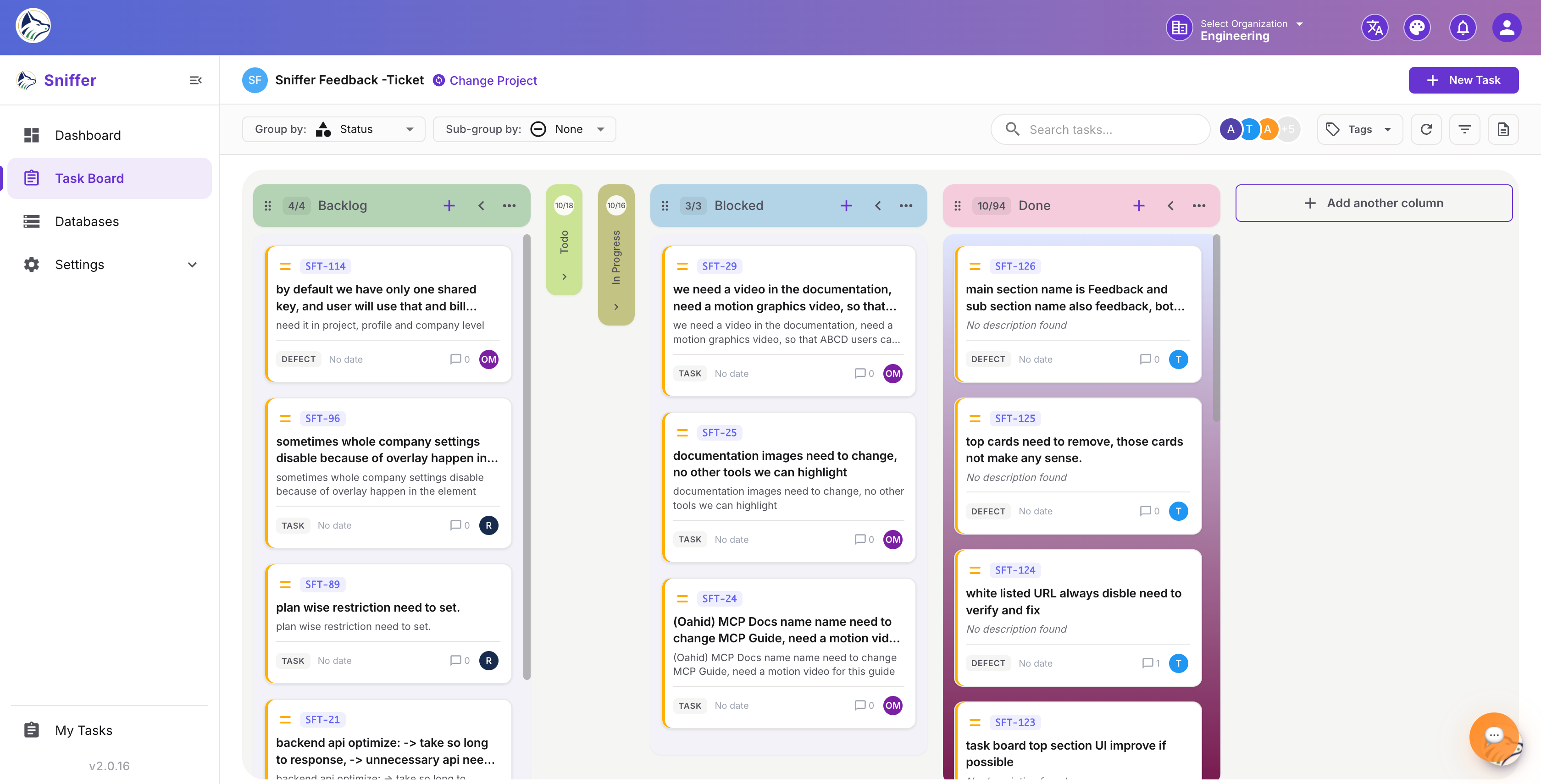
📄 List View#
A compact linear listing of issues — useful for triage and quick scanning. Each row is a single line with key, title, priority, assignee, status, and due date.
🃏 Issue Row Elements#
Each row on the board displays:
➕ Creating a Bug#
Click the ➕ Create Bug button in the toolbar to open the creation drawer.
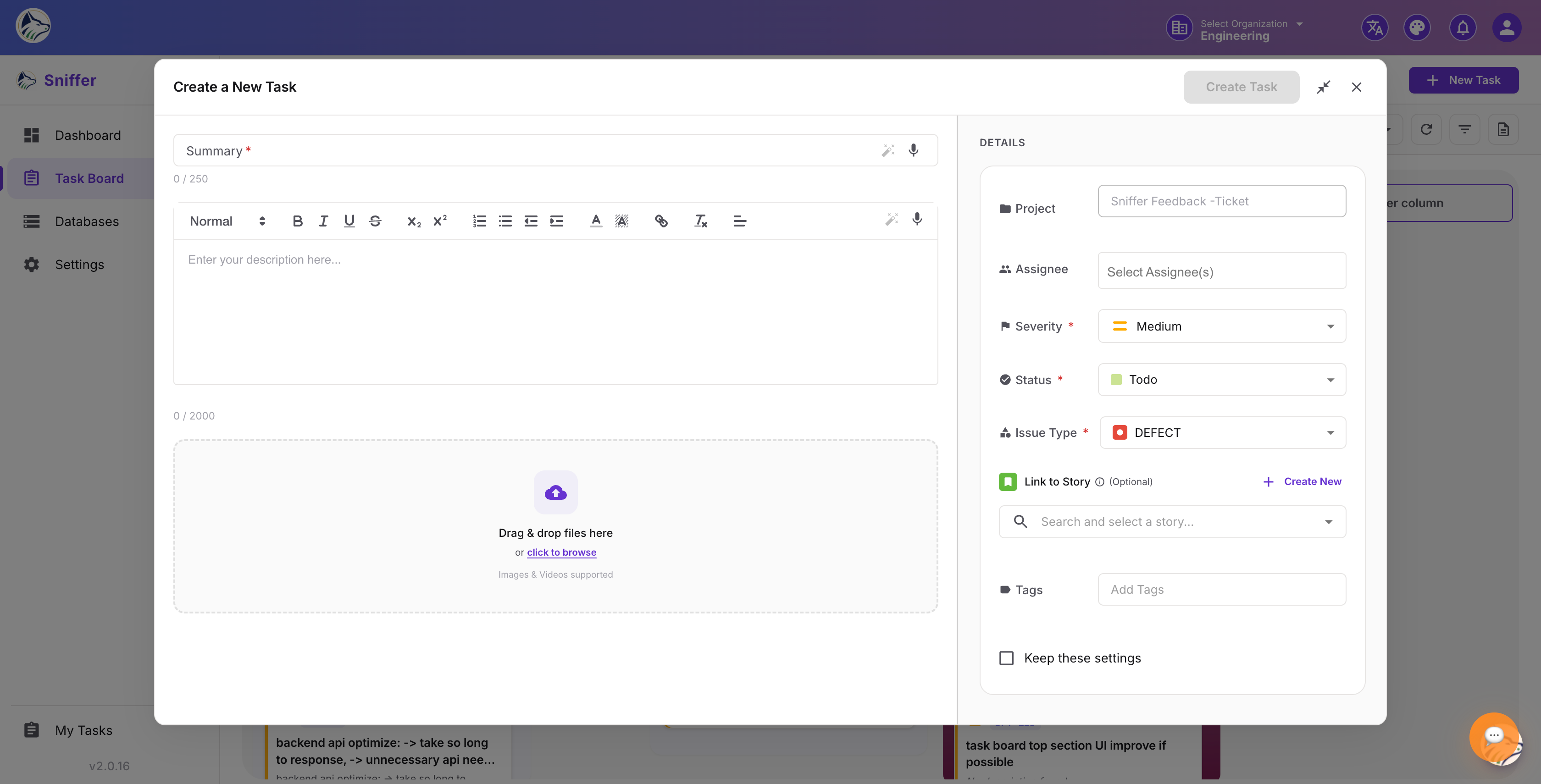
📝 Creation Form Fields#
Note: If 🔗 Jira sync is enabled, a corresponding Jira ticket is created automatically when you click Create. The Jira issue key appears on the row with a hyperlink.
Click any row to open the 🐛 Bug Details drawer with full editing, comments, attachments, and more.
🔍 Advanced Filtering#
The filter bar at the top of the board lets you narrow displayed issues.
Filter Criteria#
🧮 Filter Logic#
- Between categories → AND logic (Priority: High AND Assignee: Jane)
- Within a category → OR logic (Status: In Progress OR In Review)
💾 Saved Filters#
- Apply your desired filters.
- Click 💾 Save Filter.
- Name the filter (e.g., “My High-Priority Bugs”).
- Access it from the Saved Filters dropdown.
Saved filters are personal by default. Team admins can promote them to shared filters visible to all project members.
📦 Grouping#
Group issues into collapsible sections by any field:
Tip: You can also apply a Sub-Group for two-level grouping — e.g., Group by Assignee, Sub-Group by Priority.
🔀 Sorting#
In Table view, click column headers to sort. Hold Shift + click for multi-column sorting.
⚡ Bulk Operations#
Select multiple issues for batch actions:
- Table view — click checkboxes next to each issue, or the header checkbox for all.
- A bulk actions toolbar appears at the top.
⚠️ Warning: Bulk delete cannot be undone. Deleted issues are also removed from Jira if sync is active.
🔌 Source Indicators#
Each row displays a small source icon identifying where the issue came from: