🎨 Appearance
Customize the look and feel of Sniffer - themes, brand colors, gradients, dark mode — at the company level and per project.
🌟 Overview#
Appearance lets your team make Sniffer feel like your product. Set a brand color, build gradients, switch between flat and gradient themes, pick light/dark mode, and apply your theme across the entire workspace.
Themes exist at two levels:
- 🏢 Company-level — applied across every project for everyone in the org (default fall-back)
- 📁 Project-level — overrides the company theme for a specific project
🏢 Company Appearance#
Route: Company Settings → Appearance
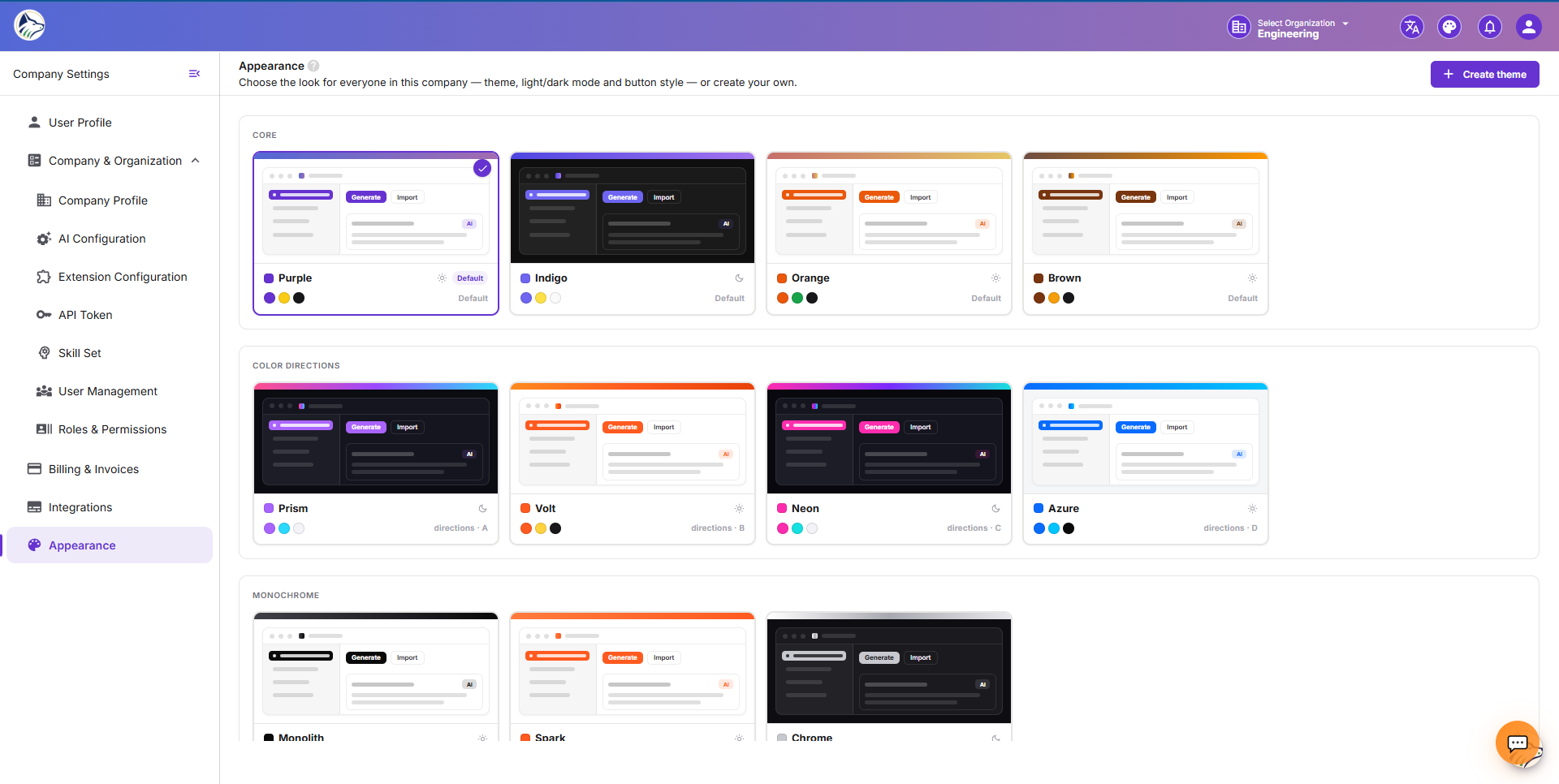
Lists every theme defined at the company level — built-in themes (Purple, Brown, Dark, Orange) and any custom ones you’ve created.
Theme Card#
Each theme is shown as a card with:
- Preview swatch (primary + secondary gradient)
- Theme name
- Built-in lock icon for system themes (cannot delete)
- Edit · Delete · Apply actions
Adding a New Theme#
Click + New Theme to open the editor.
📁 Project Appearance#
Route: Project Settings → Appearance (/sf/projects/:id/settings/appearance)
Pick from the company themes or create a project-specific one. The project theme overrides the company default for users viewing that project.
🎨 Theme Editor#
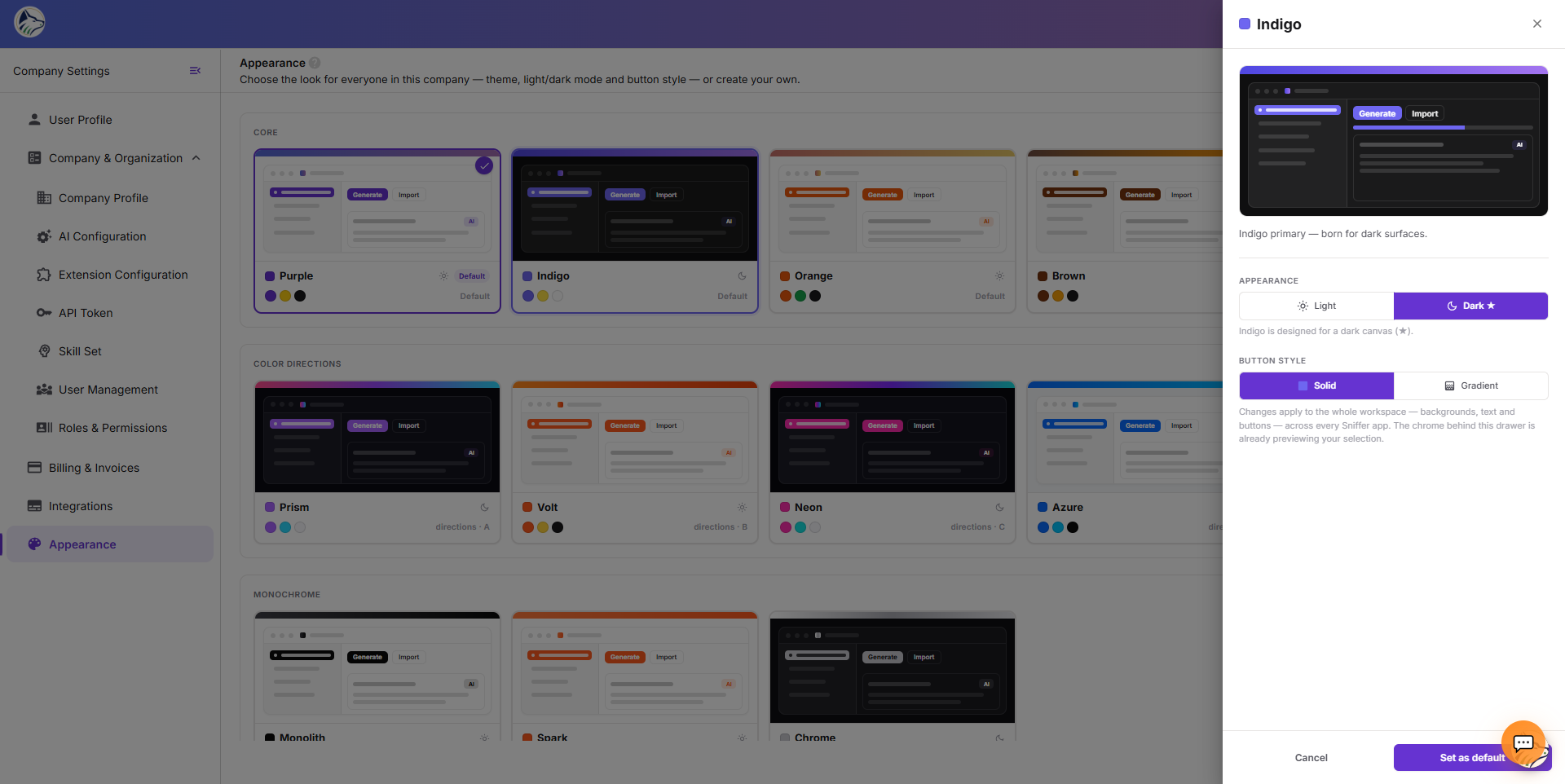
Form Fields#
Color Picker#
Each color picker provides:
- HEX input — type a hex value (with or without
#) - RGB sliders — fine-tune R/G/B
- Alpha slider — opacity 0–1
- Preset palette — quick brand swatches
- Live preview square showing the current color
Live Preview#
A panel on the right of the editor renders the active theme on a mock-up of the Sniffer UI — sidebar, button states, badges, charts — so you see the impact before saving.
💾 Theme Operations#
Validation: theme names must be unique within scope; an attempt to create a duplicate name is blocked with an inline error.
🌗 Light vs. Dark Mode#
Each user can also pick their personal light/dark preference, which overrides the theme default for their view. The choice is stored in localStorage so it persists between sessions.
🏷️ Logos & Branding#
Beyond colors, you can upload:
- Company logo (square + horizontal variants) — appears in the header and emails
- Project logo — appears on the project card and in the widget header
- Favicon — browser tab icon for self-hosted instances
Set these from 🏢 Company Settings → Company Information (company-level) or Project Settings → General (project-level).