🔗 Integrations
Connect Sniffer with Jira, GitHub, Slack, Zendesk, Azure, AWS, and CRM tools — with two-way sync, field mapping, and automated workflows.
🌟 Overview#
Sniffer integrates with the tools your team already uses. The centerpiece is Jira Cloud — full two-way synchronization of issues, statuses, comments, and fields. Additional integrations with GitHub, Slack, Zendesk, Azure, Bitbucket, S3, and CRMs extend Sniffer into code management, team communication, customer support, attachment storage, and contact enrichment.
Integrations are configured at two levels:
- Company-level — Set in Company Settings → Integration. Shared credentials used as defaults across all projects.
- Project-level — Set in each project’s Settings → Integrations. Choose which Jira project, Slack channel, or repository links to this specific project.
Once configured, integrations work automatically. Issues created in Sniffer appear in Jira without manual intervention. Changes propagate bidirectionally. See the 🧩 Sniffer for Jira app for viewing bug details inside Jira.
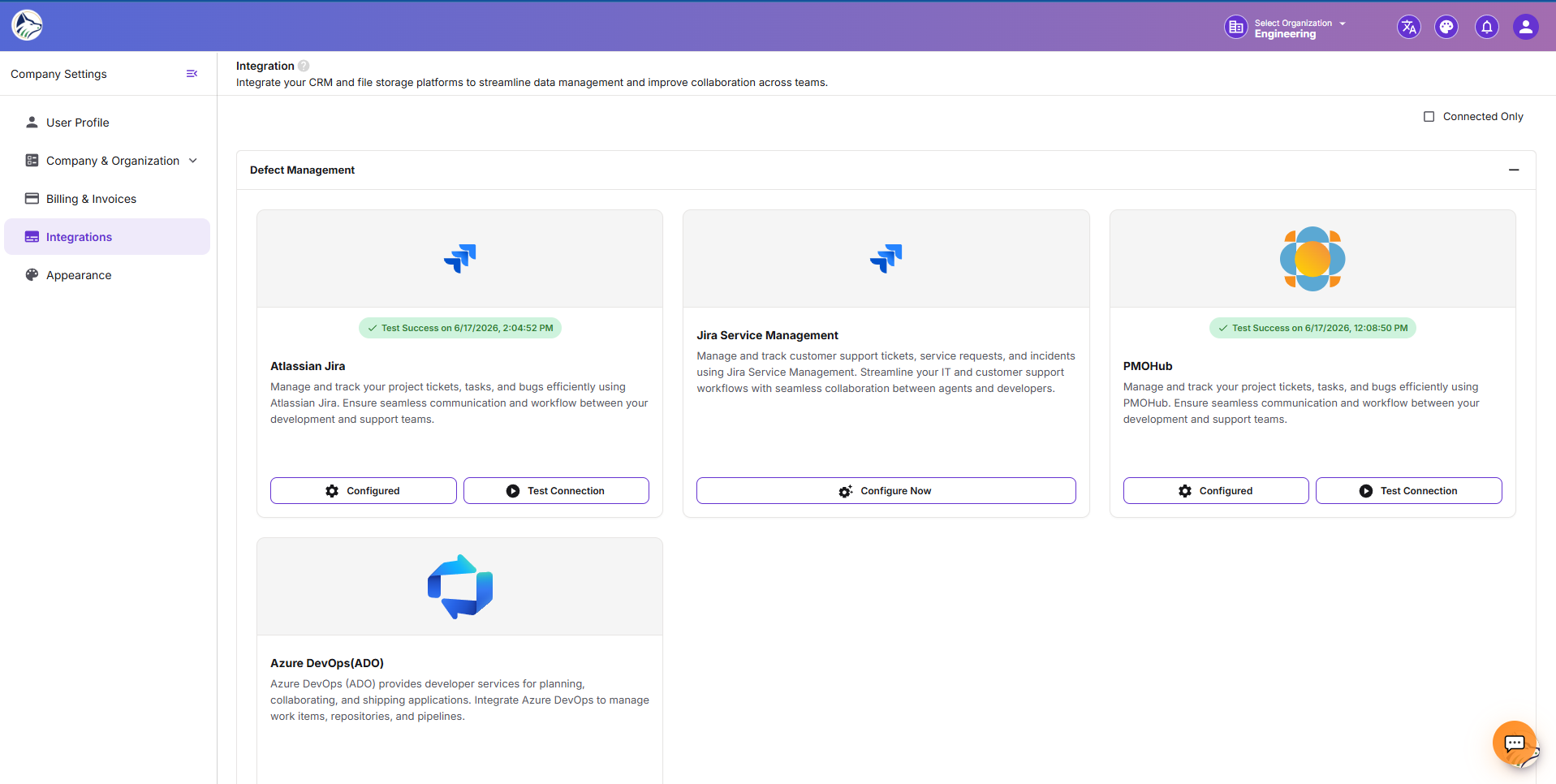
🏢 Company-Level Integrations#
Navigate to Company Settings → Integration to configure organization-wide credentials.
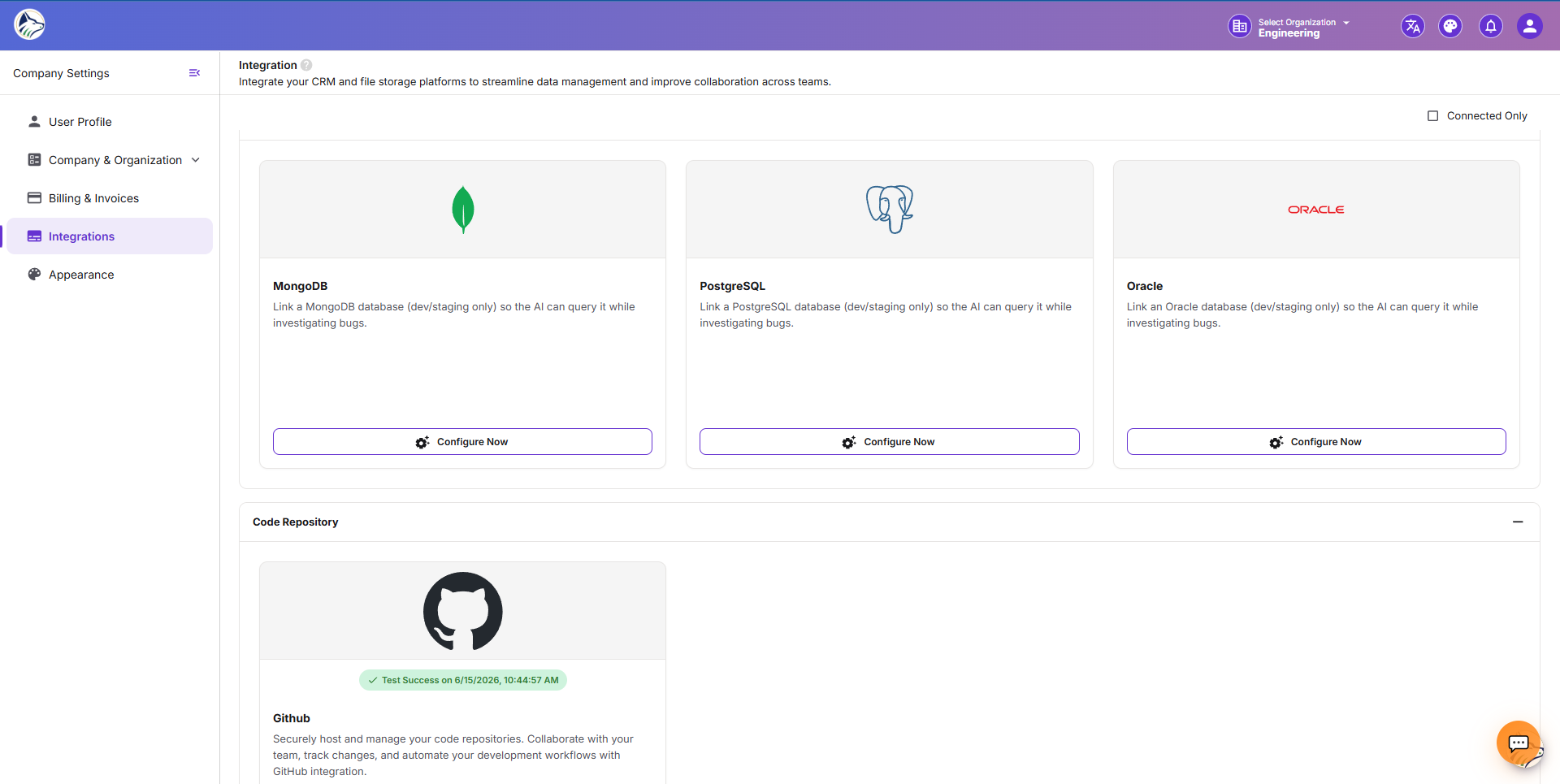
📂 Integration Categories#
🃏 Service Card UI#
Each integration shows as a card with:
- Logo and integration name
- Description of what it does
- ⚙️ Configure button — opens the connection drawer
- ▶️ Test Now button — tests the connection and shows success/failure
- Status badge — “Configured Successfully” or “Configure Now”
- Last Tested — timestamp of last connection test
📝 Connection Credentials#
Click Configure to open the drawer. Fields vary by integration:
Note: Sensitive fields (API tokens, passwords) are masked with a visibility toggle 👁️ and stored encrypted at rest.
🧪 Test Connection#
- Click ▶️ Test Now on any configured integration.
- Confirm in the dialog: “Are you sure you want to Test?”
- Result shows as a banner: ✅ “Test Success on [date]” or ❌ “Test Failed on [date]” with diagnostic detail.
📋 Project-Level Integrations#
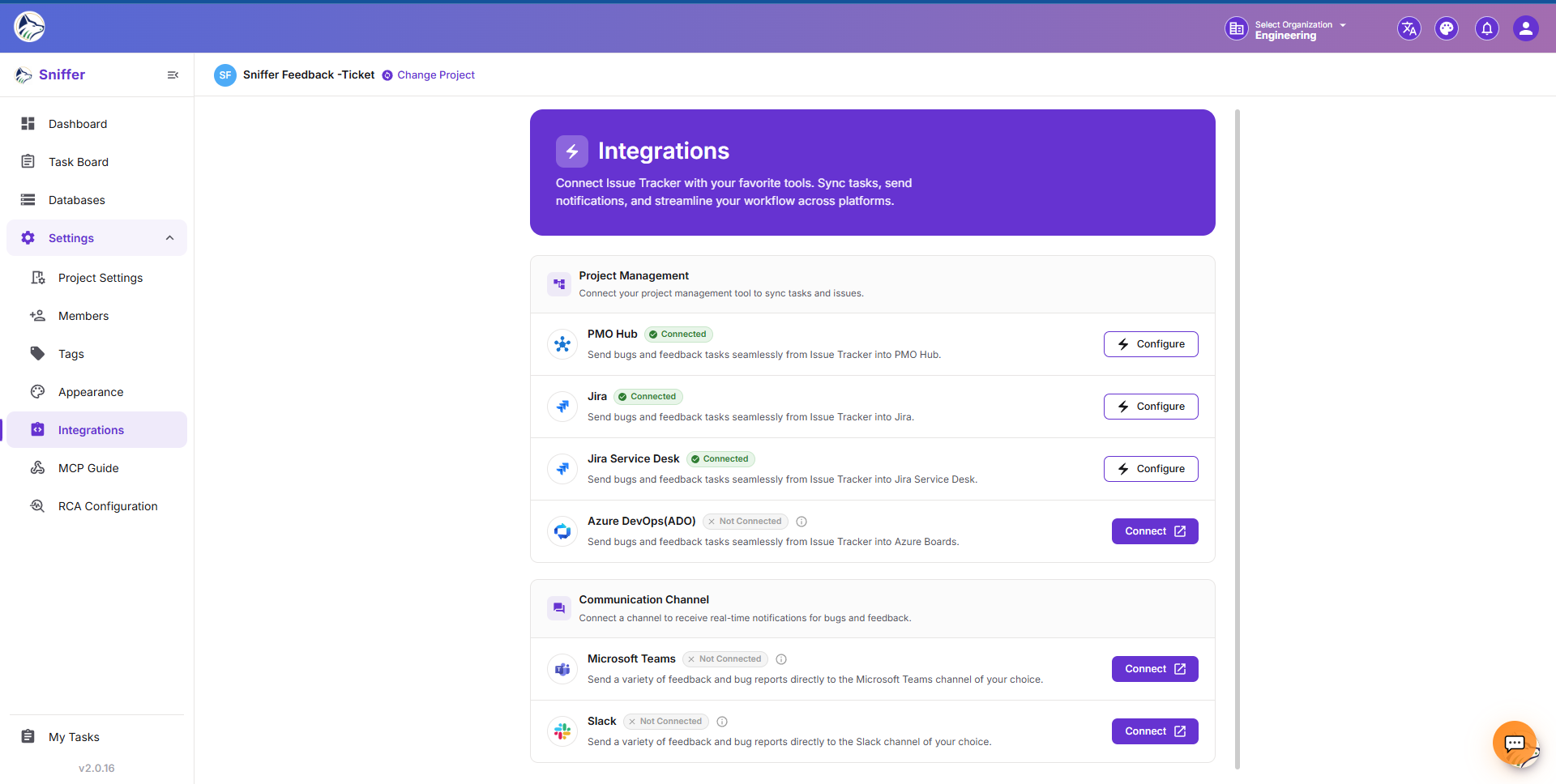
Navigate to Settings → Integrations within any project (/sf/projects/:id/settings/integrations).
🖼️ Insert image of the Project Settings → Integrations tile grid.
🔧 Available Integration Tiles#
Click a tile to open the Integration Config Drawer.
🔄 Jira Configuration (Project-Level)#
The Jira integration drawer contains:
📁 Project Mapping#
Select the Jira project to sync with from a searchable dropdown. Sniffer fetches all projects from your connected Jira instance.
📊 Field Mapping Table#
Map Sniffer fields to their Jira equivalents:
⚙️ Sync Toggles#
📊 Status Mapping#
Map each Sniffer status column to its corresponding Jira status. For example:
- Sniffer “Todo” → Jira “To Do”
- Sniffer “In Progress” → Jira “In Progress”
- Sniffer “Done” → Jira “Done”
🎧 Zendesk Configuration (Project-Level)#
The Zendesk drawer shows:
When connected, bugs created in this project automatically create Zendesk tickets with bidirectional sync.
🔔 Slack Configuration#
When connected to a project, Slack sends notifications for:
- New bugs / tickets
- Status changes (configurable)
- Comments and @mentions
- Live Logs / System Bug alerts
- Feedback path rule triggers
Channel selection happens at the project level using a multi-select of Slack channels available to the bot.
🧩 Sniffer for Jira App#
In addition to API-level sync, Sniffer provides a Forge-powered Jira app that adds a panel inside Jira’s issue sidebar. This panel shows full bug context — screenshots, recordings, console/network logs, AI analysis — without leaving Jira.
See 🧩 Sniffer for Jira → for full details.
🤖 MCP (Model Context Protocol)#
Sniffer also exposes its data to AI coding assistants via MCP. See 🤖 MCP Integration → .