⚙️ Settings & Permissions
Configure your project’s statuses, tags, team members, roles, integrations, appearance, and advanced options to tailor Sniffer to your team’s workflow.
🌟 Overview#
Settings are scoped to individual projects — each project can have its own statuses, tags, roles, theming, and configurations. Access project settings by clicking Settings in the project sidebar.
Organization-wide settings (company integrations, billing, member management, org chart) live under 🏢 Company Settings → .
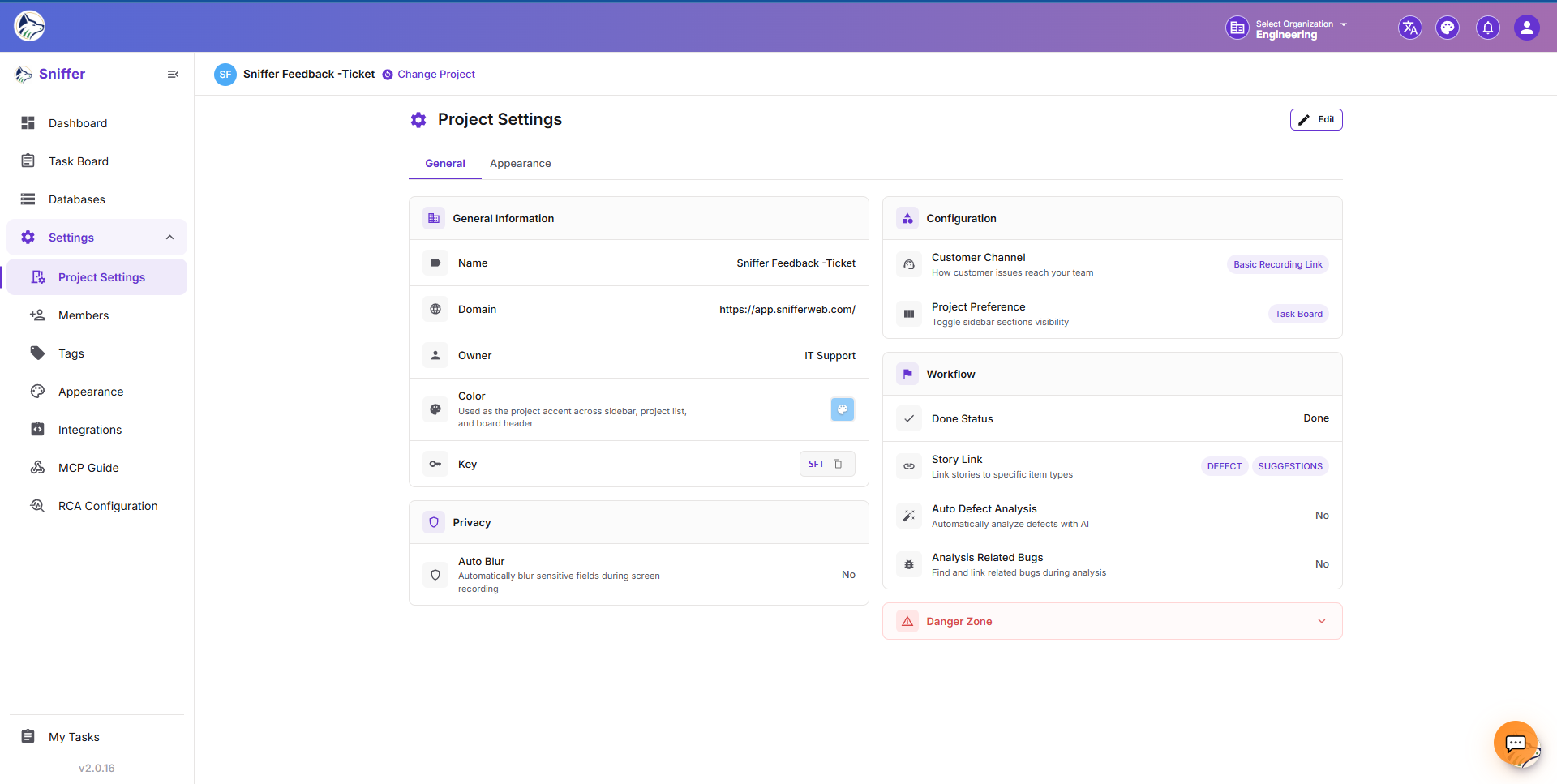
Route: /sf/projects/:id/settings
🏗️ Project Settings#
📝 General#
📊 Custom Statuses#
Customize the workflow columns on your 📋 Task Board :
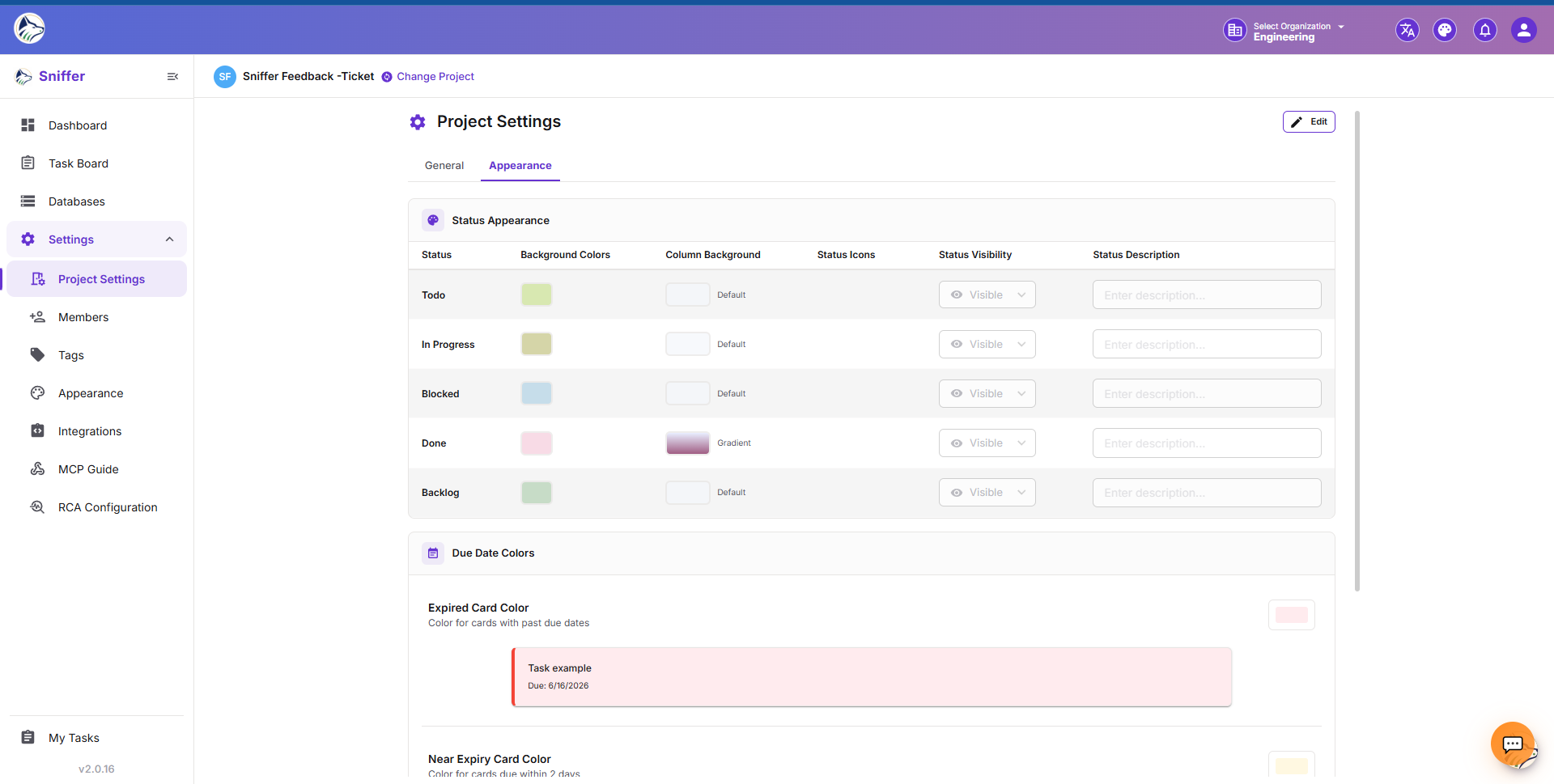
Default statuses: Todo, In Progress, In Review, Done
Note: Status changes on the board automatically update linked Jira tickets when 🔗 integration is active.
🏷️ Tags#
Create and manage color-coded labels for categorizing issues:
Tags appear as colored chips on 📋 Task Board cards and in the 🐛 Bug Details drawer.
👥 Members#
Manage the project team:
Members are pulled from your company-wide member list.
🎨 Appearance#
See 🎨 Appearance → for the full theming UI.
🔗 Integrations#
Project-level integration tiles (Jira, Jira Service Desk, Zendesk, Slack, Microsoft Teams, Salesforce, PMO Hub). See 🔗 Integrations → .
🤖 Sniffer-AutoBug#
Configure the auto-bug-capture pipeline that runs from the CDN snippet. See 🤖 Sniffer AutoBug → .
Route: /sf/projects/:id/settings/sniffer-autobug
📘 MCP Docs#
Setup documentation for connecting AI assistants via Model Context Protocol. See 🤖 MCP Integration → .
Route: /sf/projects/:id/settings/mcp-docs
🔌 Extension Unpacked#
Setup page for installing the 🔌 Browser Extension as an unpacked Chromium extension. Provides:
- Download link for the latest build
- Step-by-step Chrome / Edge load-unpacked instructions
- Sign-in token generation
Route: /sf/projects/:id/settings/extension-unpacked
🔧 Field Configuration#
🔔 Notification Settings#
⚙️ Advanced Settings#
🚨 Danger Zone#
At the bottom of Project Settings:
- Click Delete Project.
- Type the project name to confirm.
- Click Delete to permanently remove.
⚠️ Warning: This is irreversible. All tasks, feedback, attachments, integrations, and settings are permanently deleted.
🔐 Roles & Permissions#
👤 Role Definitions#
Custom roles are defined in 🏢 Company Settings → Role Based Auth .
📋 Module-Level Permissions#
Each role has granular permissions across modules:
🏢 Company Settings#
Organization-wide configuration accessible from the top navigation. See 🏢 Company Settings → for the full overview.